
Your AI assistant for retail planning in Excel
Ask Claude or ChatGPT about your live QuickApp plans in plain language. Answers are calculated by QuickApp's own rules, changes are prepared for your approval, and your permissions apply to every request.
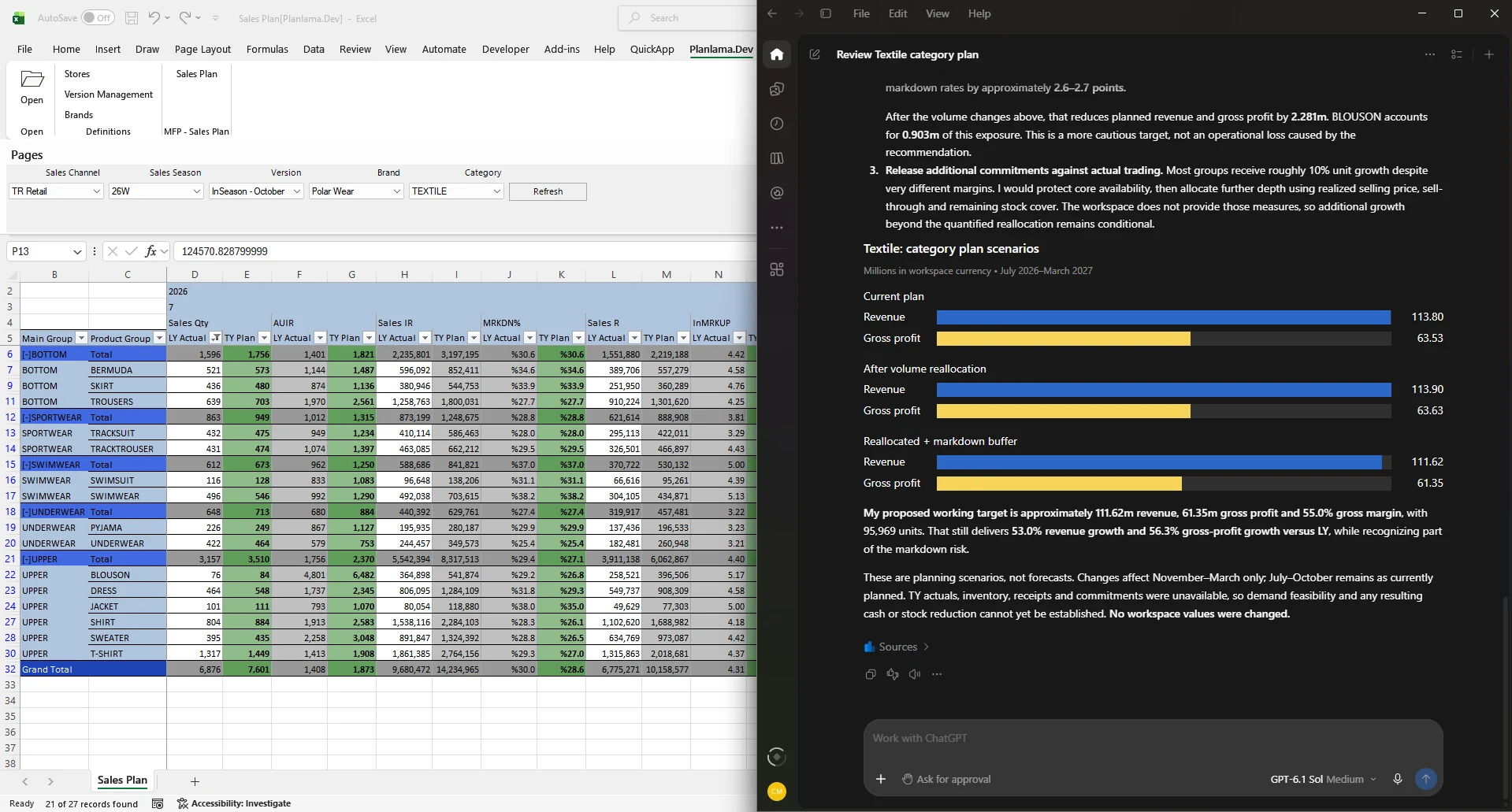
A new way to work with your plans
Every planning cycle raises questions like these: Which brands are behind budget this season? Where did margin slip compared with last year? What happens if we raise this category's target by five percent?
QuickApp already holds the answers. With QuickApp AI, planners ask in the AI assistant they already use and move straight on to the next question, or to the change the answer calls for. The assistant works directly with the QuickApp workspace in Excel and reads the same view the planner sees.
Ask your plan. Approve the change.
Ask
Ask in plain language. The assistant opens the workspace you need, even one that is not loaded yet, chooses the application and sets the page selections.
Analyse
It works with the data loaded in your workspace, the same view you see. When the question needs more, it changes page selections and loads other pages too. Totals follow QuickApp's own rules, including formula metrics.
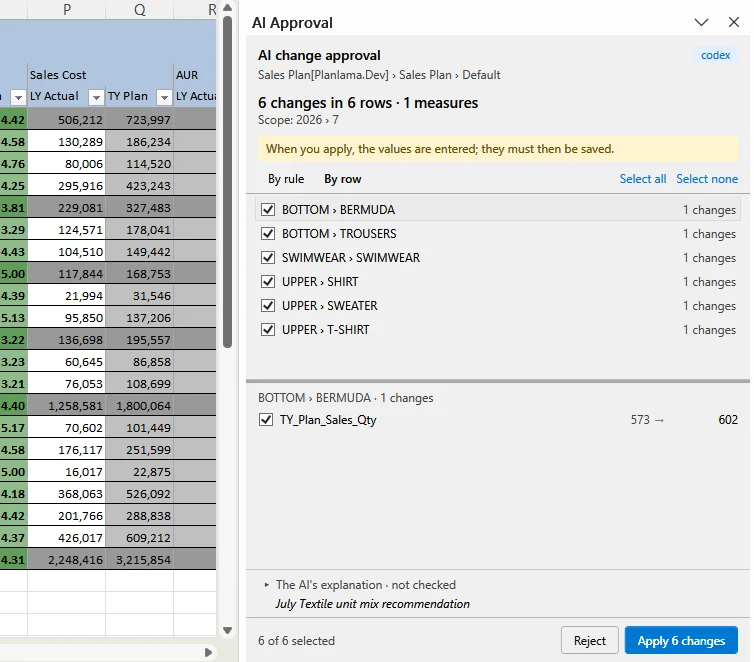
Prepare and approve
Ask it to build or revise a plan. It prepares the entries through QuickApp, checked against your application's rules. You review them in Excel and apply all, some or none.
You approve every change
Ask for a new or revised plan and the assistant prepares the entries through QuickApp, which checks them against your application's rules. After you approve the request in the assistant, QuickApp shows the changes in Excel: each row, its current and new value, and the metrics that will change.
Apply all of them, only some, or none. What you see comes from QuickApp's prepared plan, not from the assistant's own description.
Beyond the screen: AI Datasets
When the answer needs data that is not on any screen, the assistant can query the reporting cubes your planners already use, through AI Datasets your administrator opens to AI. Questions at any level of detail, without building a new report.
What it brings to your team
Answers from the live plan
The assistant works with the workspace, application and view open in Excel, with the right fields, metrics, filters and page selections. It does not use an exported copy.
QuickApp's numbers, not approximations
Totals and subtotals follow QuickApp's own rules. If a value cannot be worked out safely, the assistant is told so. It does not guess.
Navigation by conversation
Open workspaces, choose an application, set page selections, load data and switch views, all by asking.
Plan entry with approval
Values, adjustments, lookups and new rows, checked against the application's rules before they are applied.
Questions at any level of detail
AI Datasets bring your reporting cubes into the same conversation.
Several workspaces at once
One conversation can work across several open workspaces and Excel windows without mixing them up.
You decide what AI can see and do
Your permissions apply
Allowed, Read-only or Denied, for users and roles, checked again on every request. A revoked permission takes effect at once.
You approve the changes
Every change is shown in Excel before it is applied, taken from QuickApp's own plan rather than the assistant's words. You apply all, some or none. Locked cells and spreading rules still apply.
AI Datasets under your control
Administrators choose which cubes are open to AI, who can use each dataset by user and role, and which dimensions and metrics stay hidden from AI.
No bulk copy to the AI provider
Your data stays in your own databases and is never copied in bulk to the assistant. For each question, it receives only the results it needs, from data the user is allowed to access.
A full audit trail
Every AI action is recorded: who, which tool, which assistant, and what you applied or rejected. Cell values, prompts and conversations are not stored.
Results sent to the assistant are handled by the AI provider you choose, under your agreement with that provider. Choose an assistant and plan that meet your company's data policies.
For every planning team
Merchandise Financial Planning
Ask: "How did sell-through by category compare across the last three seasons?"
Learn more → MAPMerchandise Assortment Planning
Ask: "Which options sold through slowest last season?"
Learn more → FP&AFinancial Planning & Analysis
Ask: "Where are this quarter's expenses ahead of plan?"
Learn more →For IT teams
Runs next to Excel
The connection is installed with the QuickApp Excel add-in, runs on the user's Windows computer, is code-signed and updates with the add-in.
Supported assistants
Claude Desktop, Claude Code, Codex and ChatGPT Desktop are set up automatically and can be reconfigured at any time. VS Code and Cursor are supported too.
Turned on by your administrator
QuickApp AI permissions are granted per namespace and environment.
AI Datasets on Analysis Services
AI Datasets are defined on SQL Server Analysis Services cubes. Queries run through the connection you define: with Windows authentication, each user's own cube permissions apply.
Frequently asked questions
Which AI assistants work with QuickApp AI?
The desktop apps of Claude and ChatGPT, as well as Claude Code, Codex, VS Code and Cursor. Browser versions are not supported, because the connection runs on the user's computer next to Excel.
Does our data go to the AI provider?
Your data is never copied in bulk to the AI provider. For each question, the assistant receives only the results it needs, and only data the user is allowed to access.
Can the AI change our plans?
The assistant prepares changes through QuickApp, which checks them against the application's rules. After you approve the request in the assistant, QuickApp shows the changes in Excel, and you apply all, some or none of them. The assistant saves, discards or deletes records only when you ask it to.
Can it answer questions that are not on any screen?
Yes, through AI Datasets defined on your Analysis Services cubes.
Do we need a new installation?
No. QuickApp AI comes with the latest QuickApp add-in update. Users only need the desktop app of their AI assistant.
See QuickApp AI with your own plans
Contact our team or your QuickApp consultant to turn it on for your workspaces.